VC
Contacts
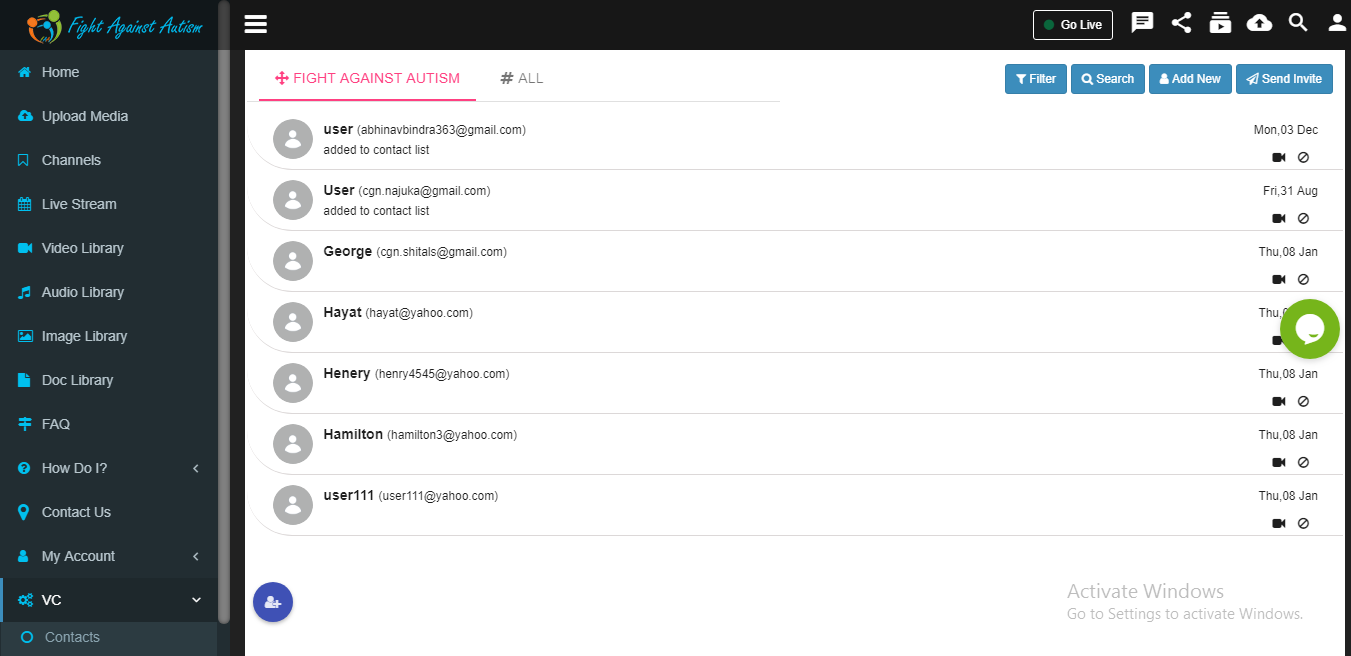
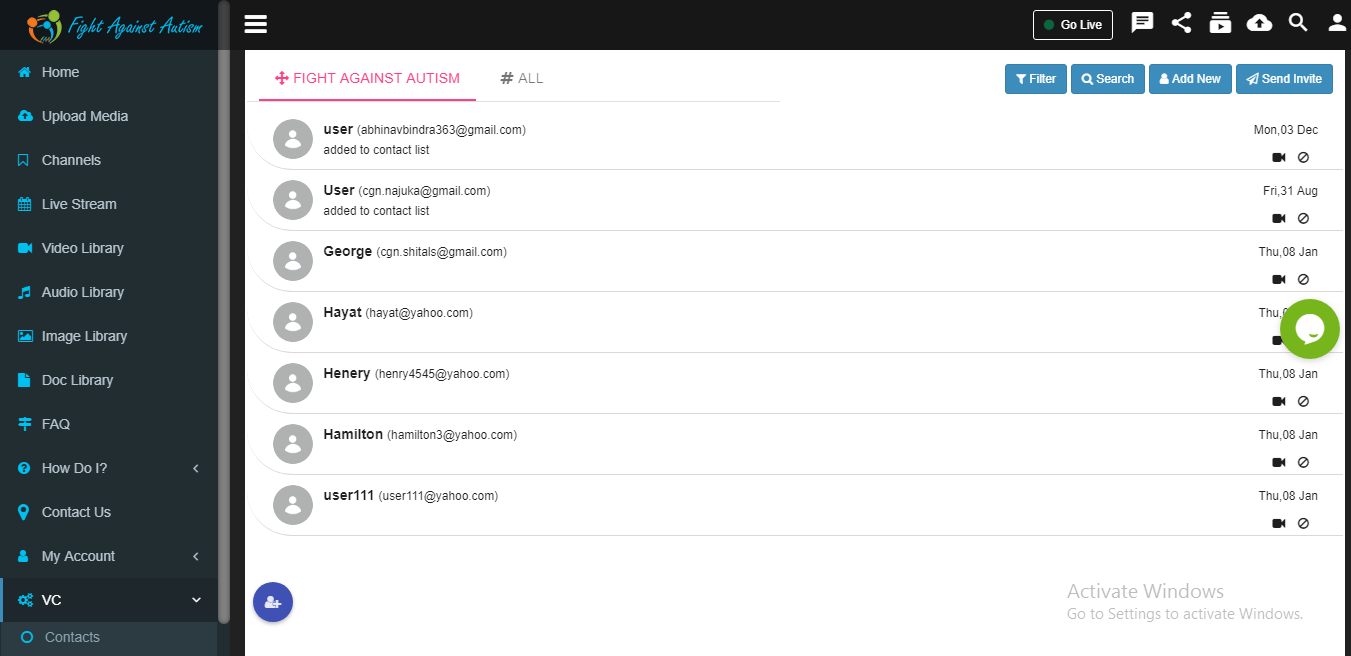
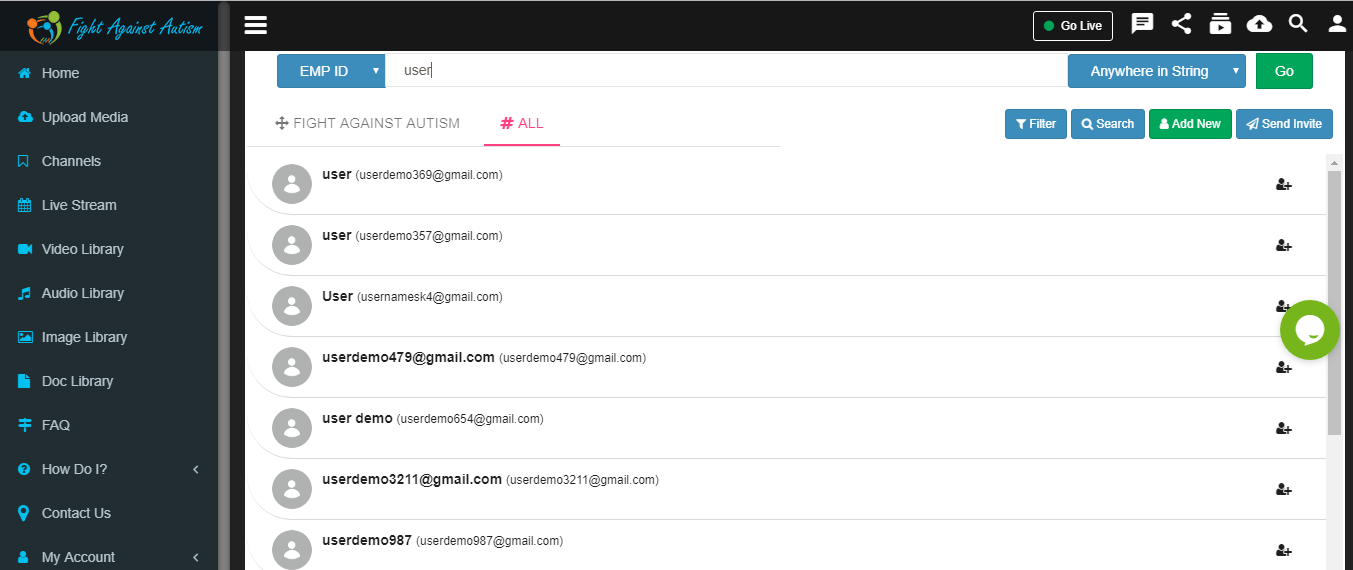
In ‘FIGHT AGAINST AUTISM’ tab you will see contacts added by you.
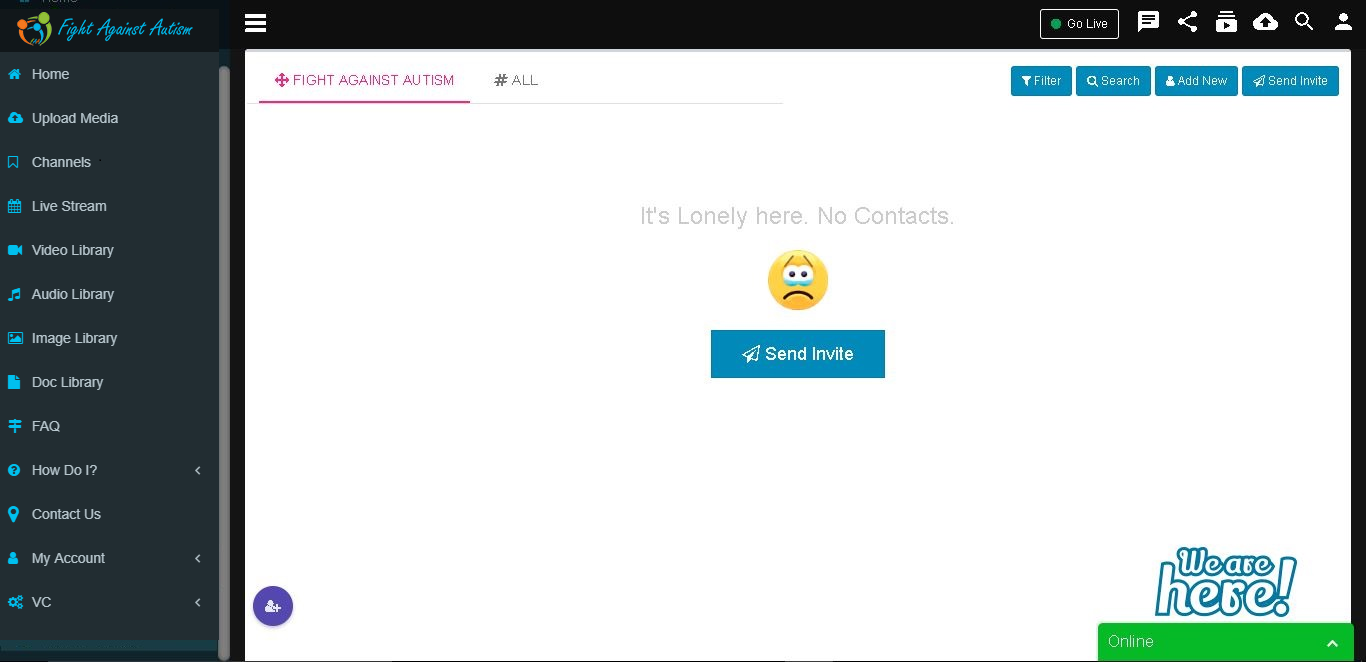
To add a contact you can send invitation to that contact by clicking on ‘Send Invite’ button.
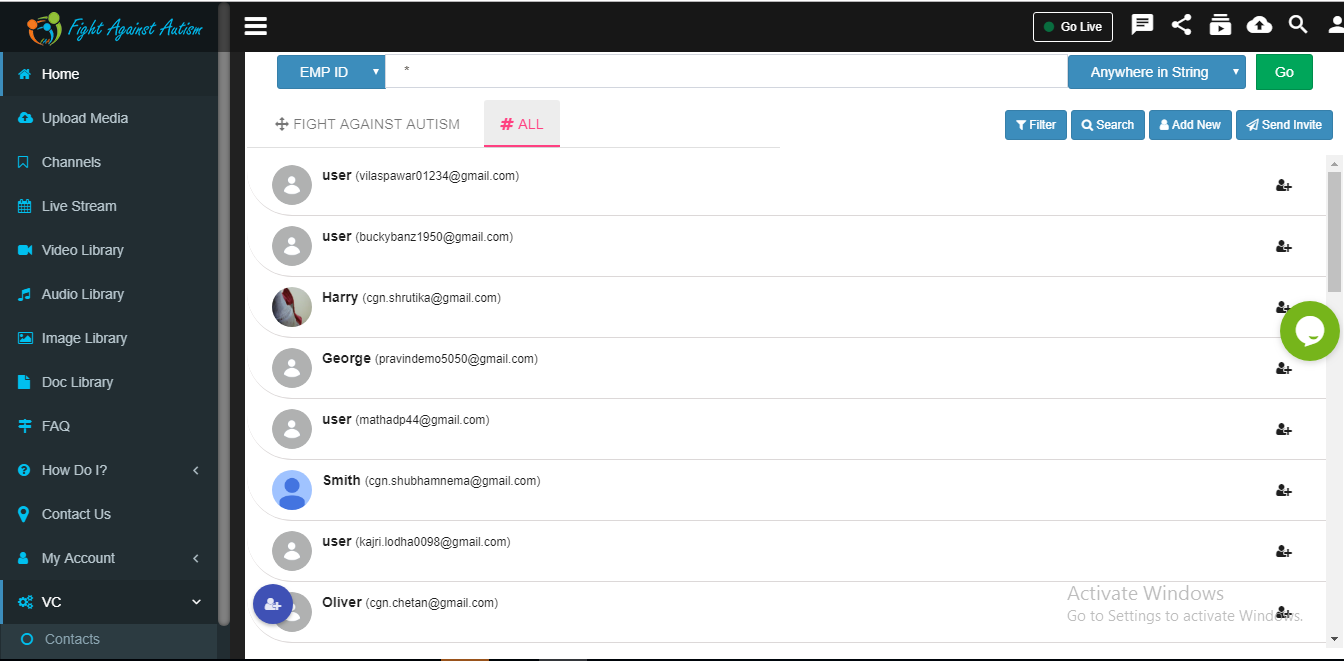
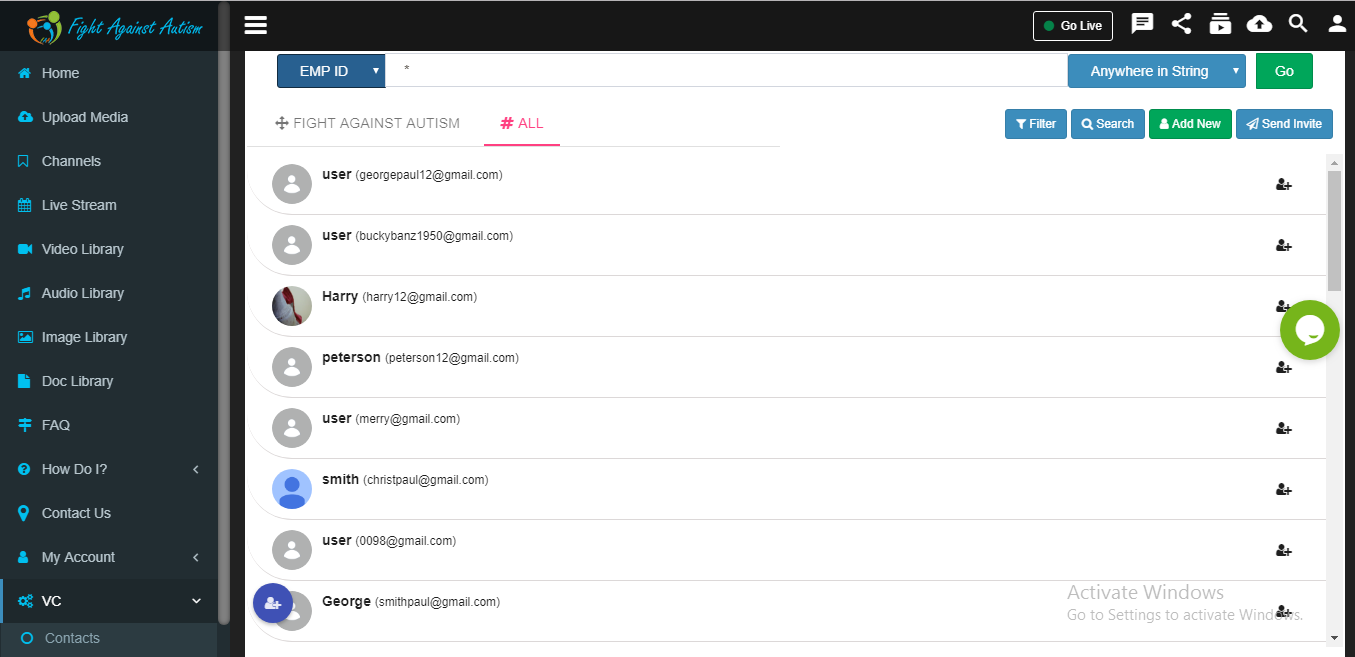
In ‘ALL’ tab you will see all contacts. To add a contact just click on ‘+’ icon in front of relevant contact.
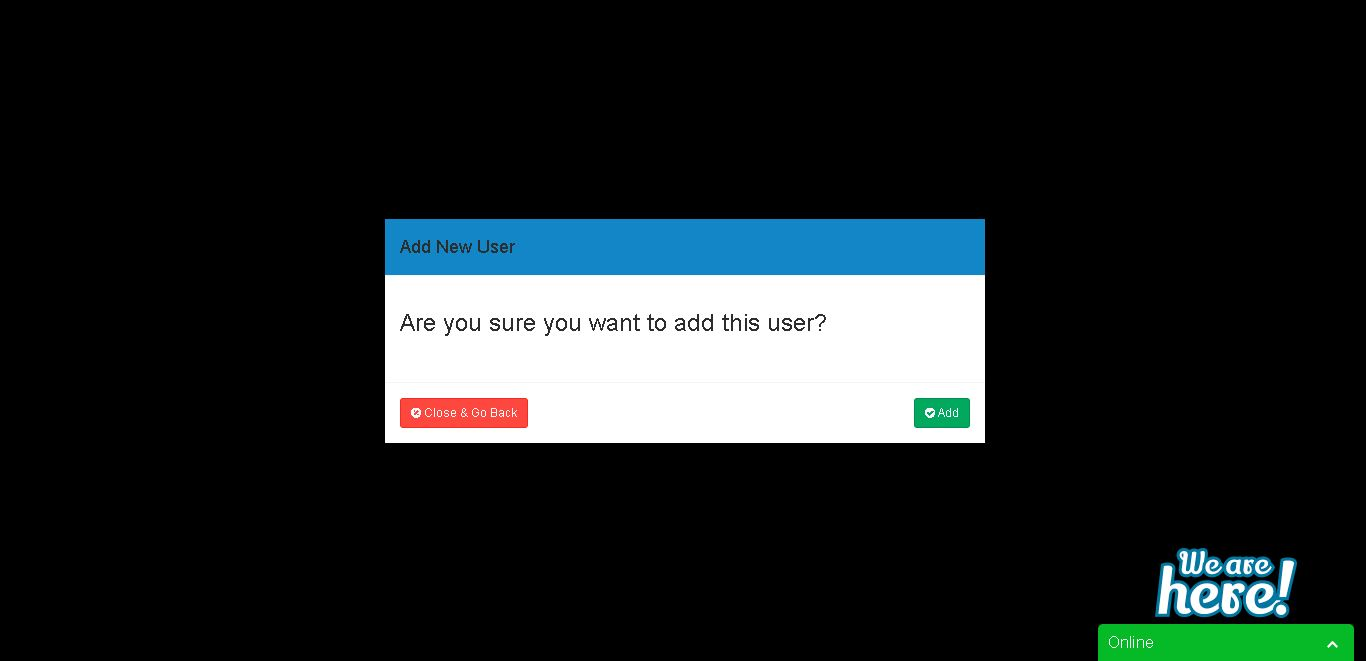
Click on ‘Add’ button.
Contact is added.
Select contact searching criteria.
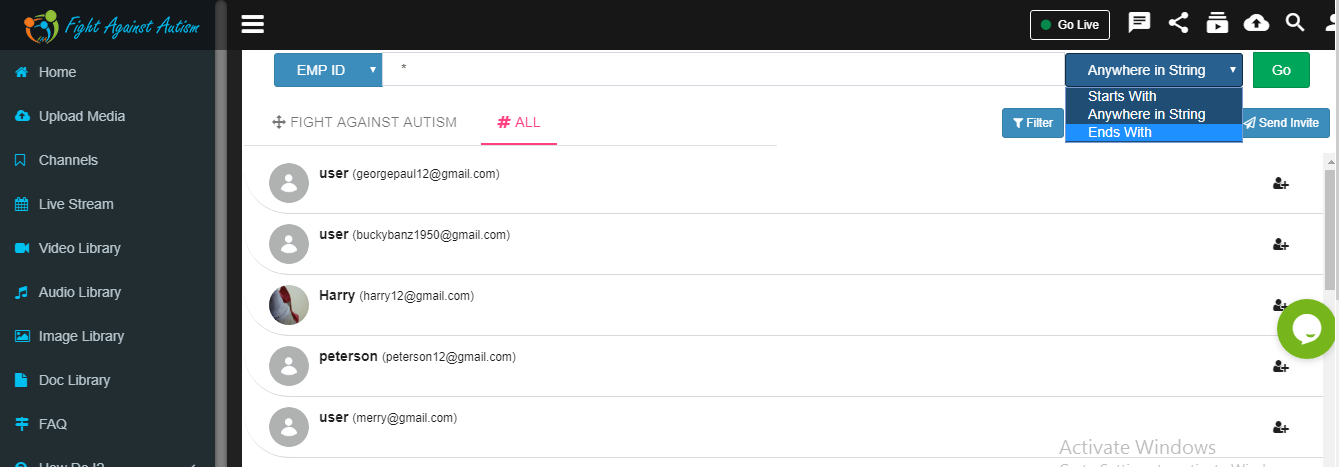
Search the contact by following options.
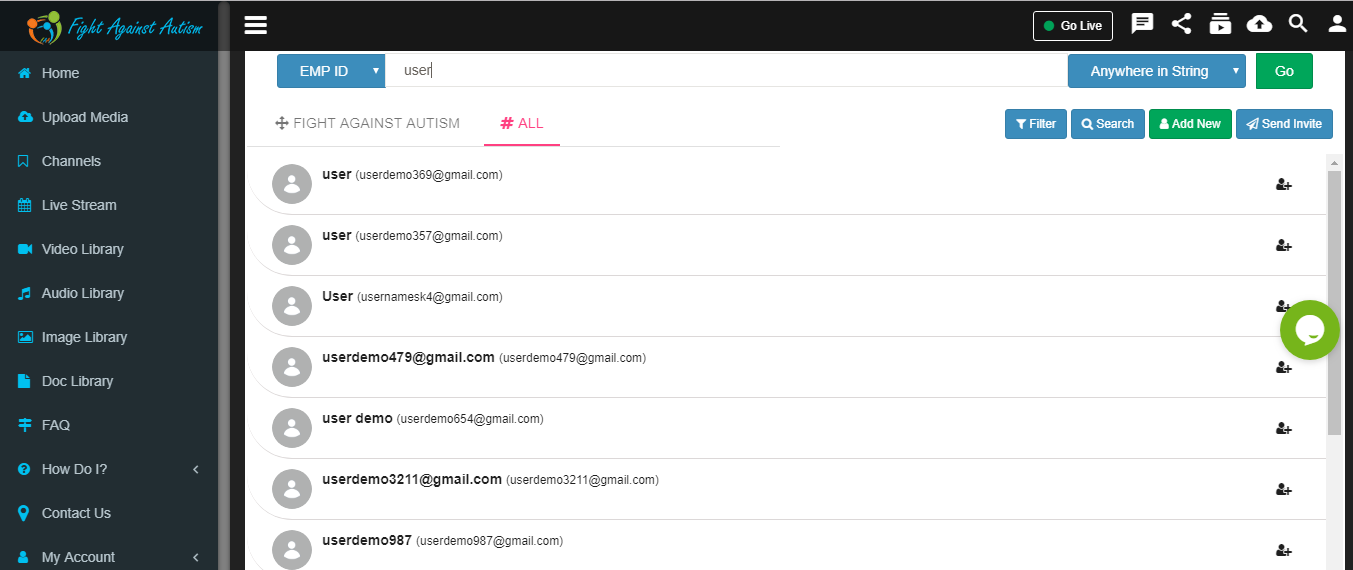
Contact search result.
Add New User
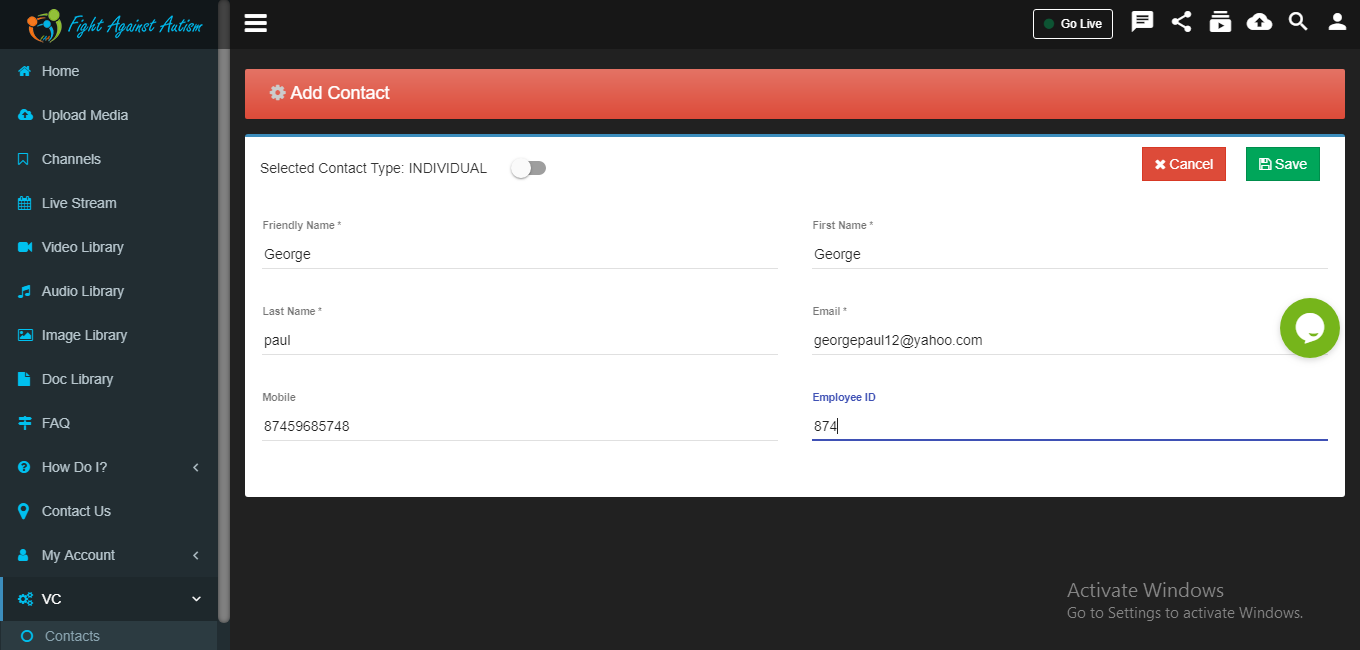
Click on ‘Add New’ button add new user or group.
Fill in relevant information about given desired contact and click on save button.
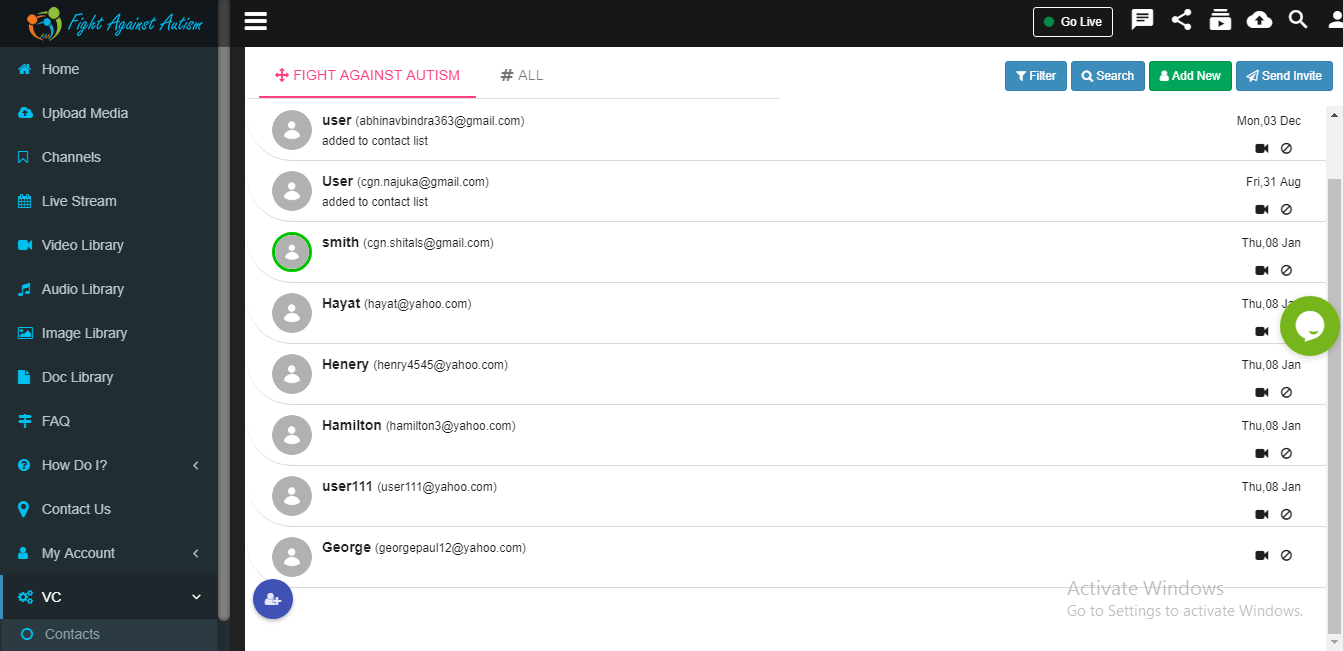
Contact is get added now.
Create group
Select the user roles and click on ‘Add users’ button.
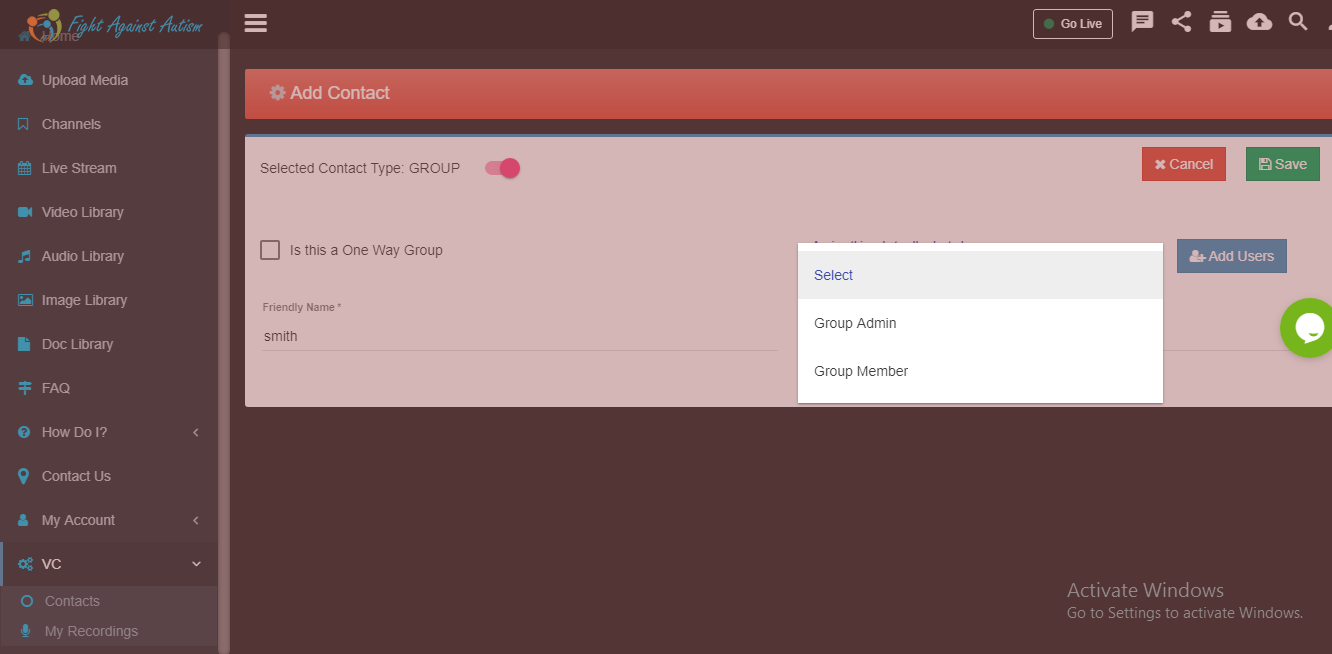
Select users.
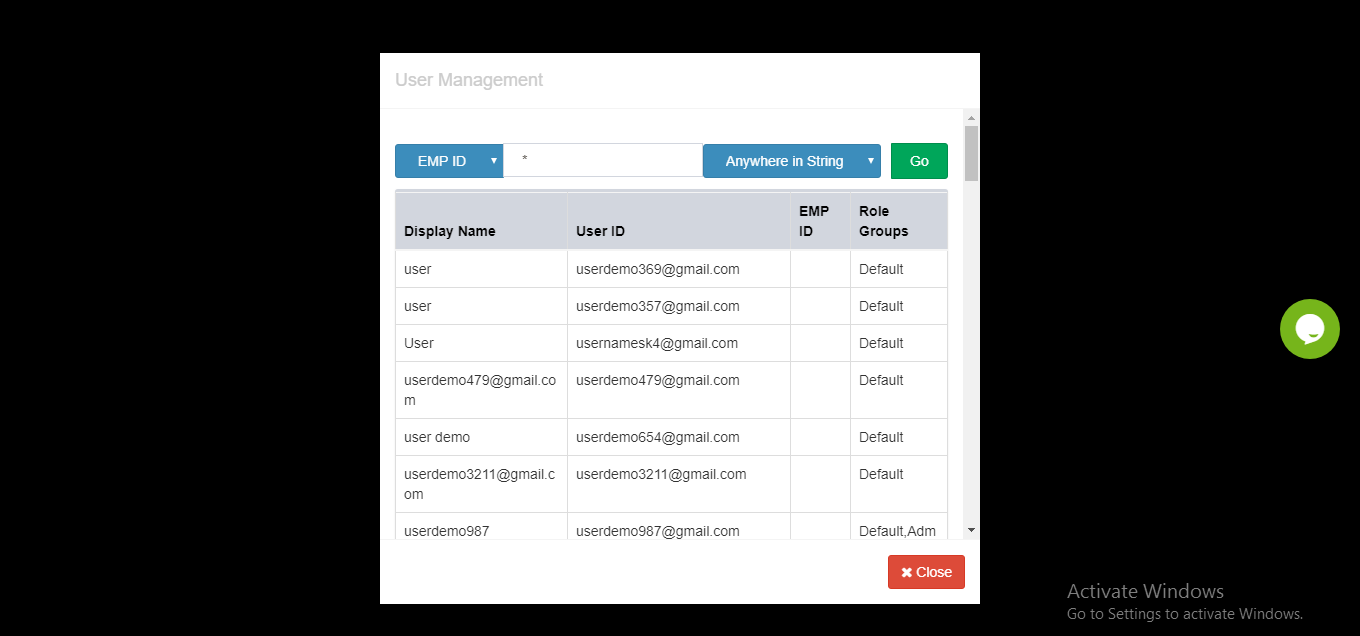
Group is created.
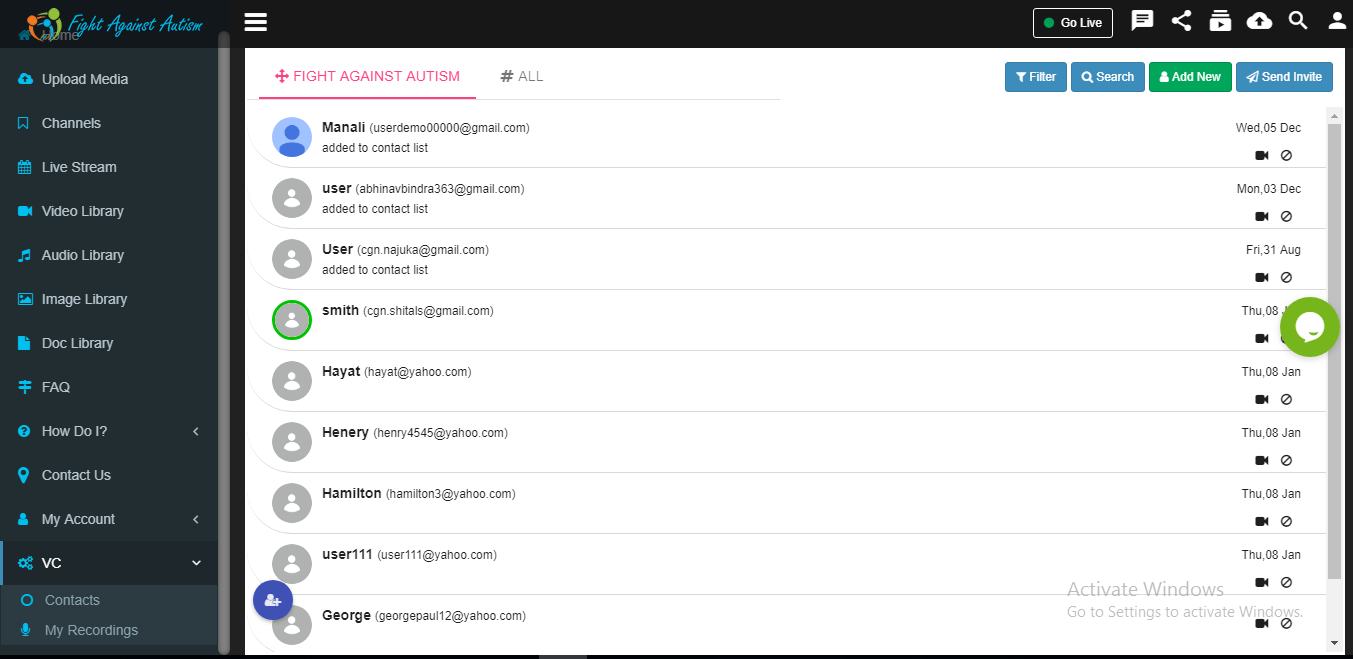
Click ok
We can do one to one chat with contact.
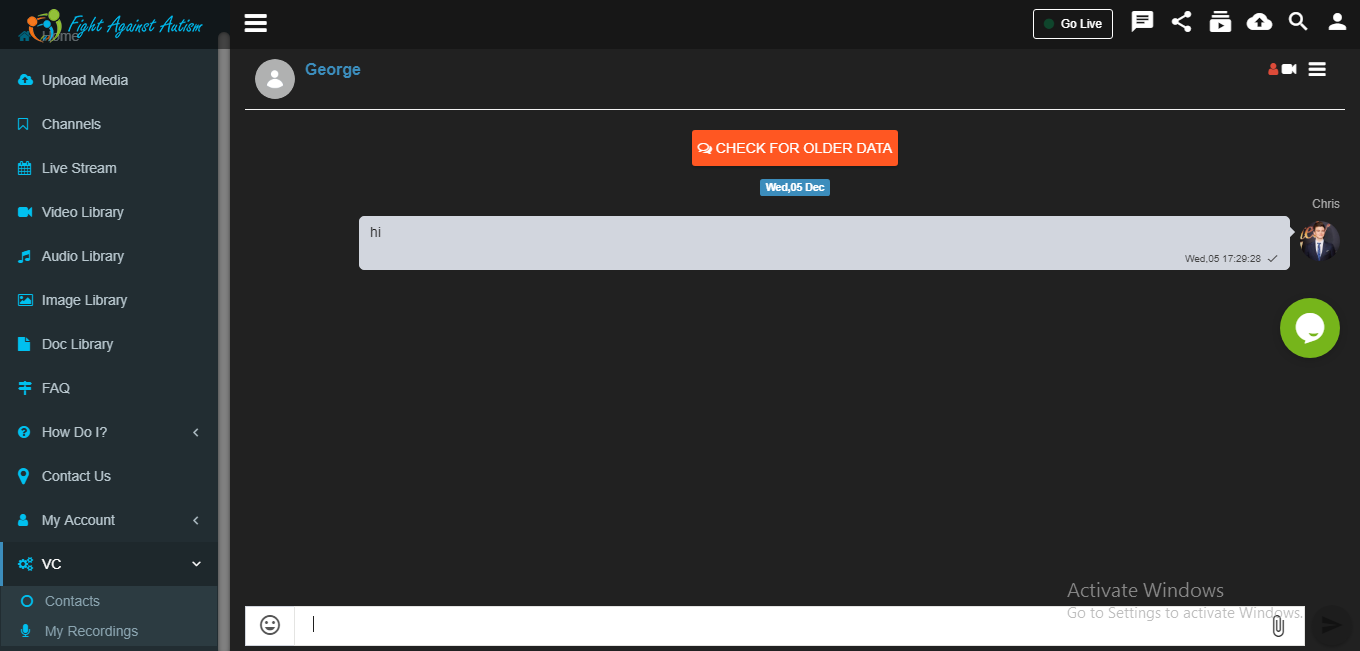
Click on ‘Video Call’ button to start video call with selected contact.

Click on ‘Start Sharing Screen’ button to share your screen.

We can send messages to each other during video call.

We can do video call, Screen share and chat in group.
